In this guide, you have a step-by-step walkthrough you can take when installing an eSIM on your Huawei Device.
Installing an eSIM using a QR Code.
Before attempting to install the eSIM, there are three main things you will need:
- A strong internet connection - Ideally, you will need to be connected to Wi-fi or have a good 4G signal.
- An eSIM compatible device - If you are unsure, here's a list of compatible devices: List of compatible devices
- The device isn't locked to one Mobile Network - If you are unsure whether or not your device is locked to a certain network, have a look at our article on how to check if your device is "locked/unlocked" Locked/unlocked devices
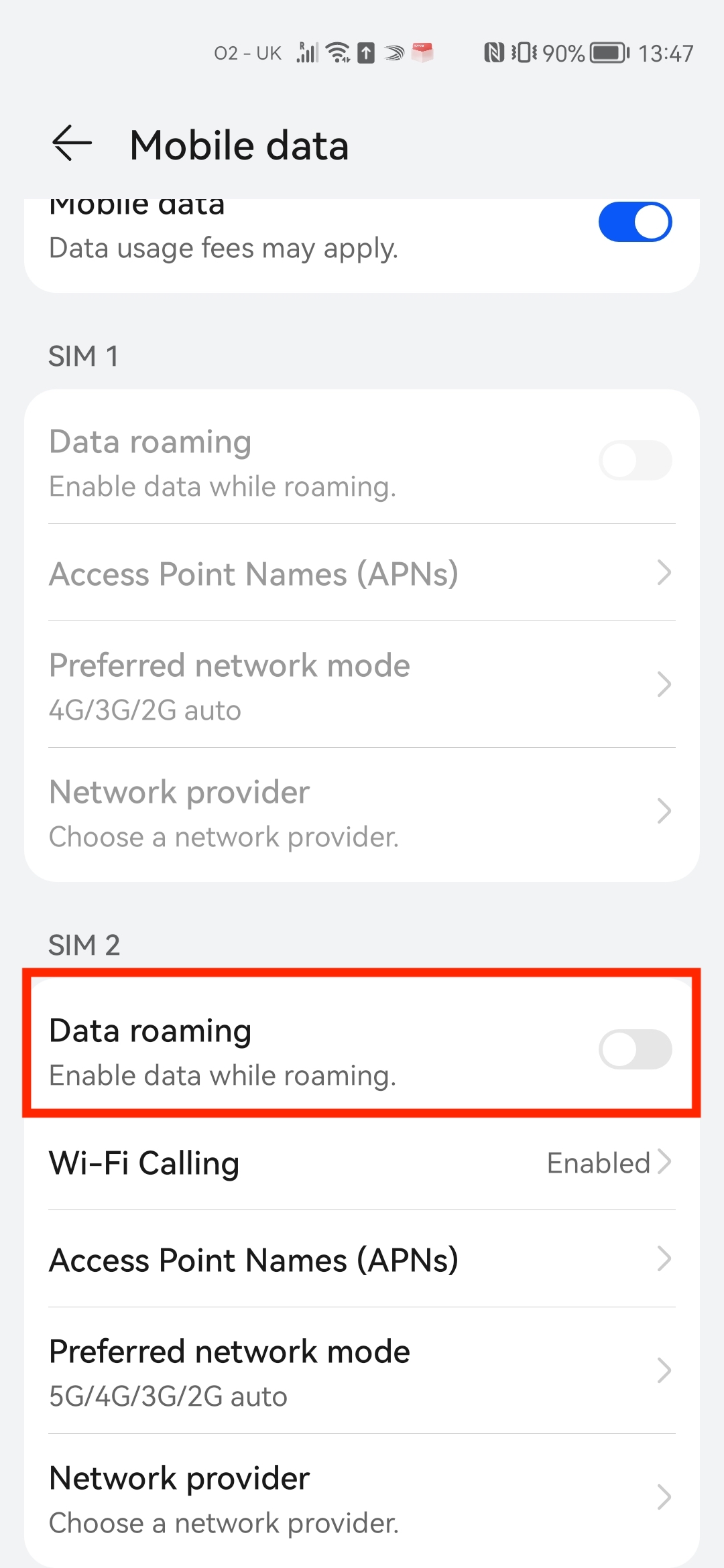
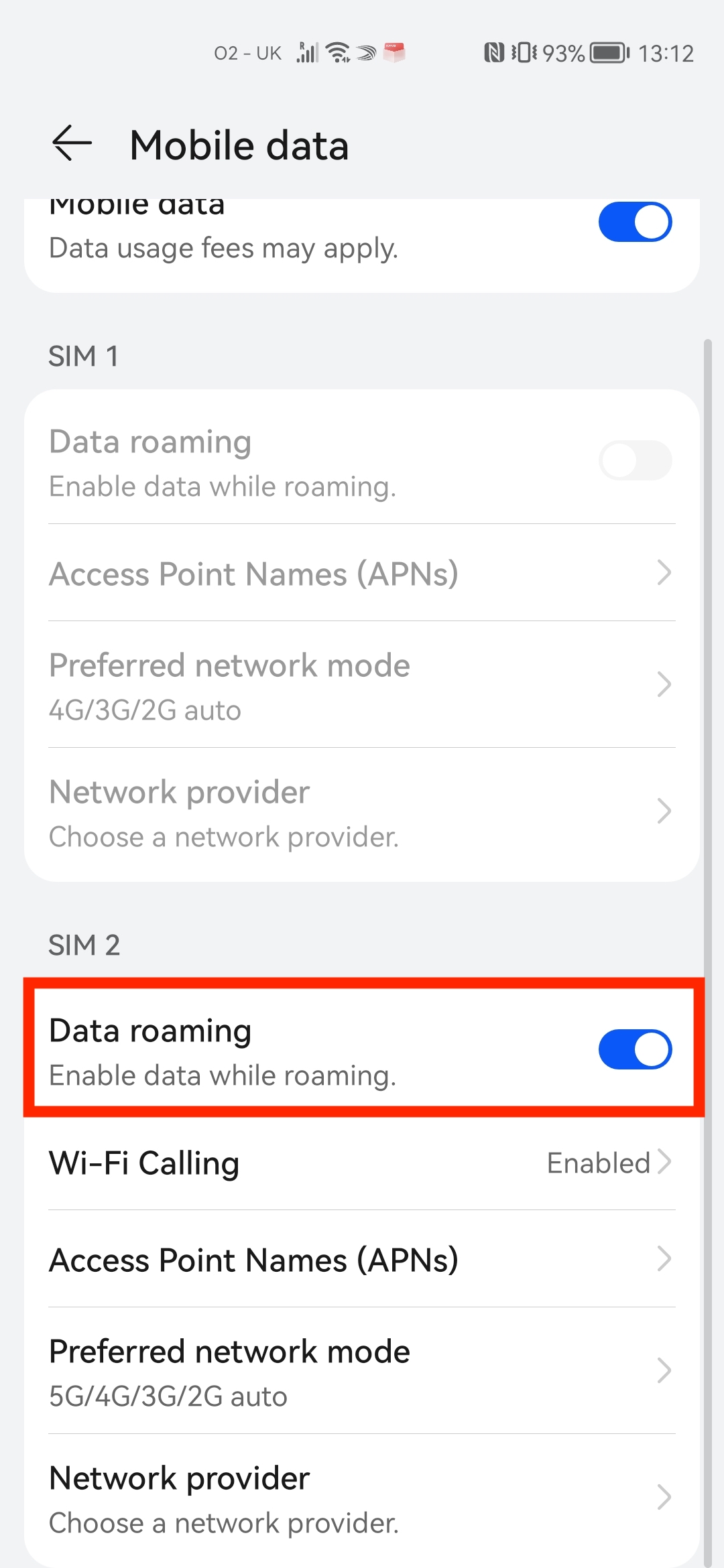
Do not forget to turn on "Data Roaming" once the installation is complete.
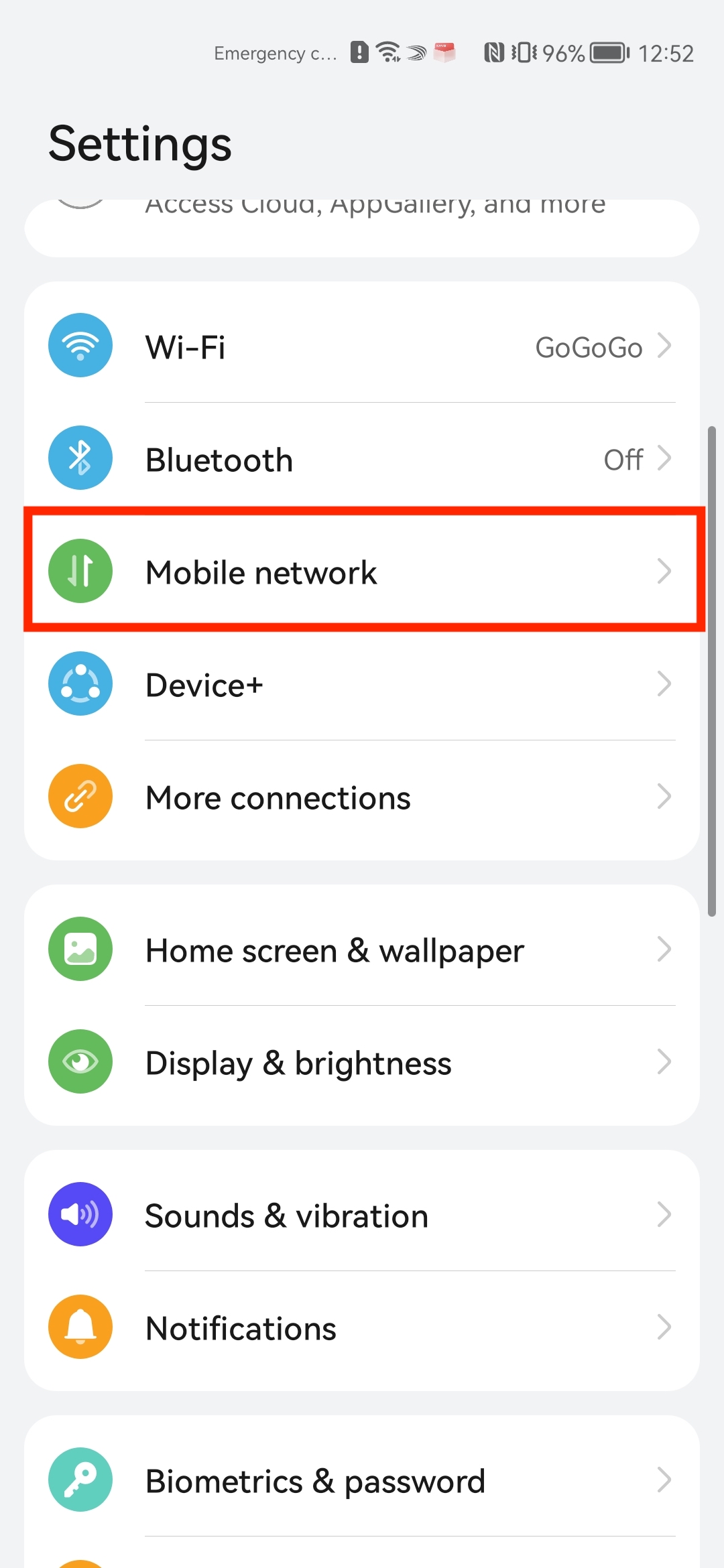
1. Go into your Settings.
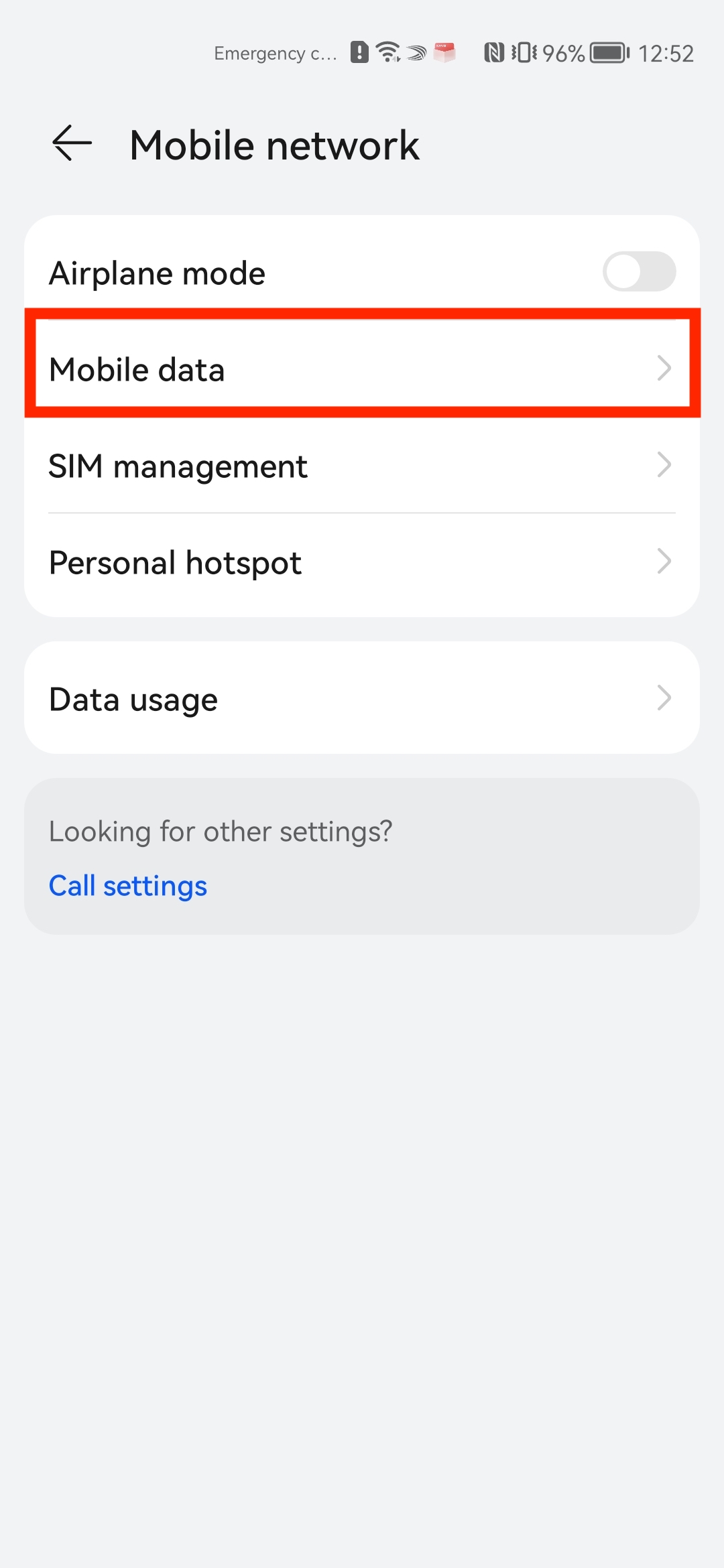
2. Click on "Mobile Network".
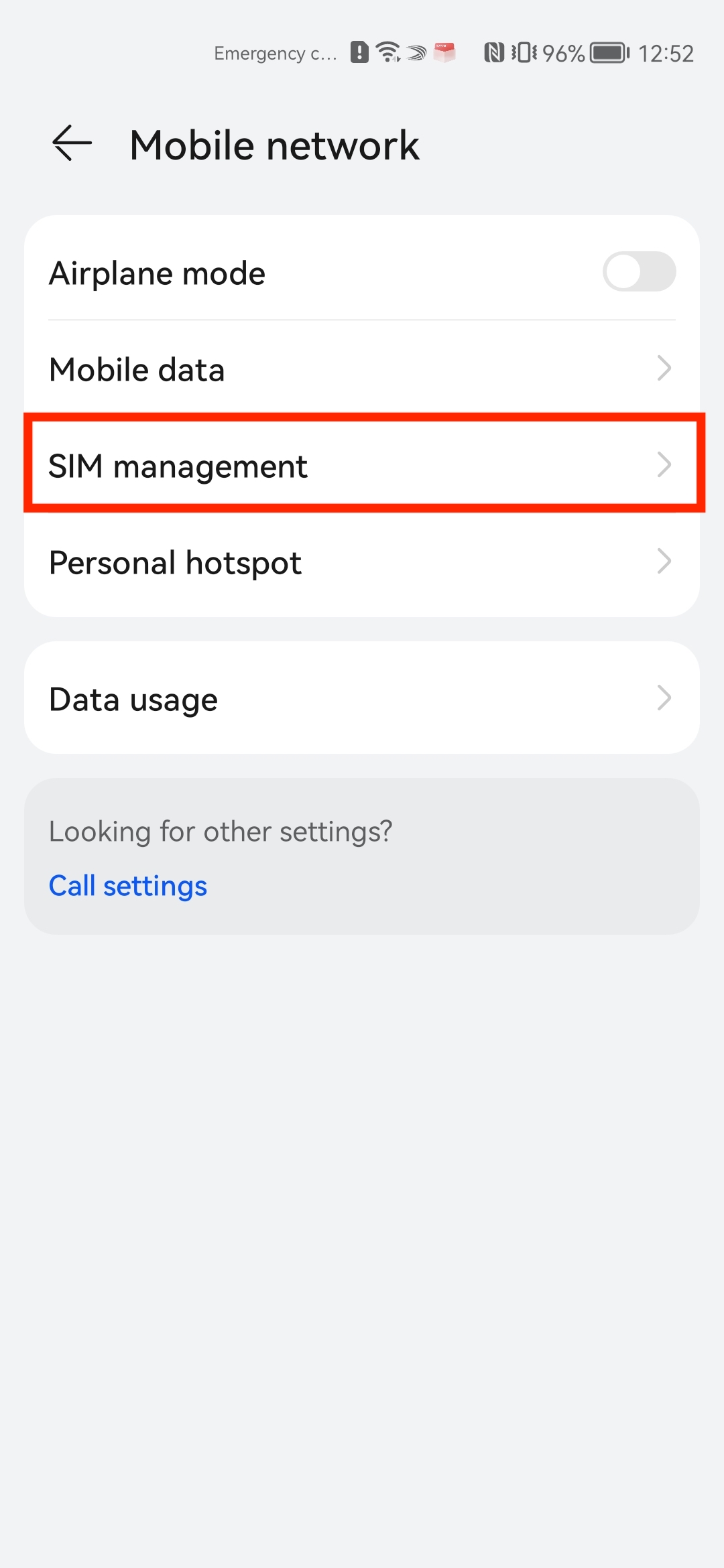
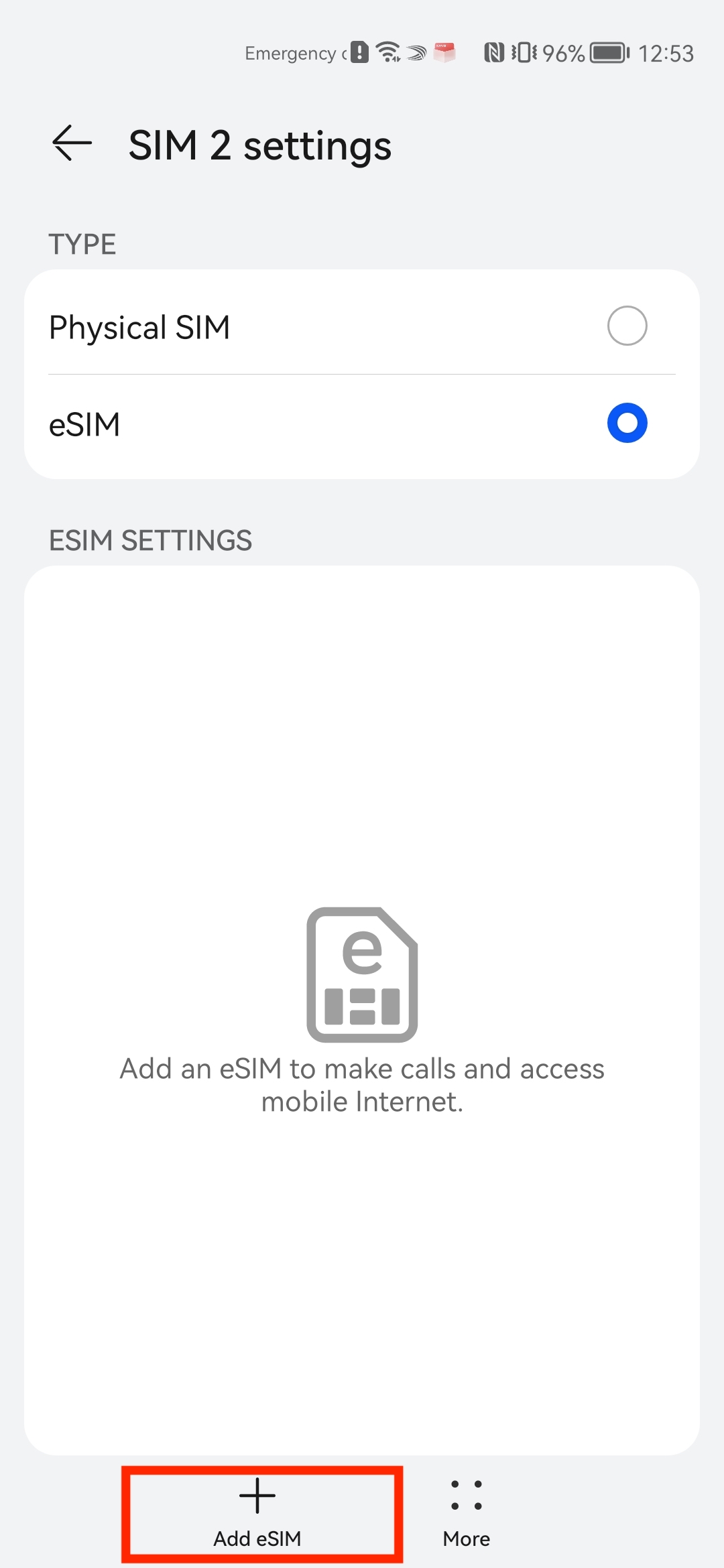
3. Click on "Sim Management" > Click "Add eSIM".
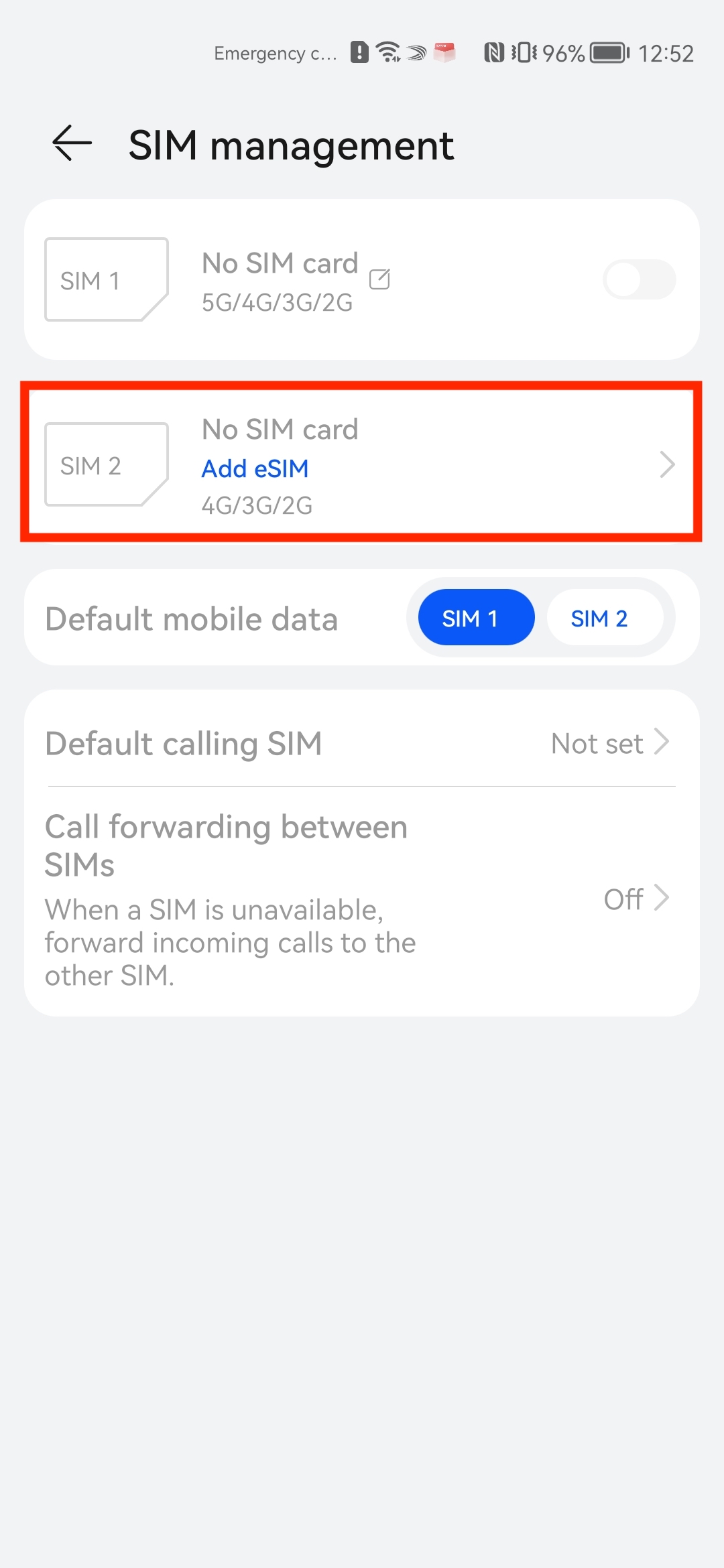
4. Click on the cross in the bottom left of the screen (Add eSIM) > Scan the "QR Code" given through your eSIMs bundles account.
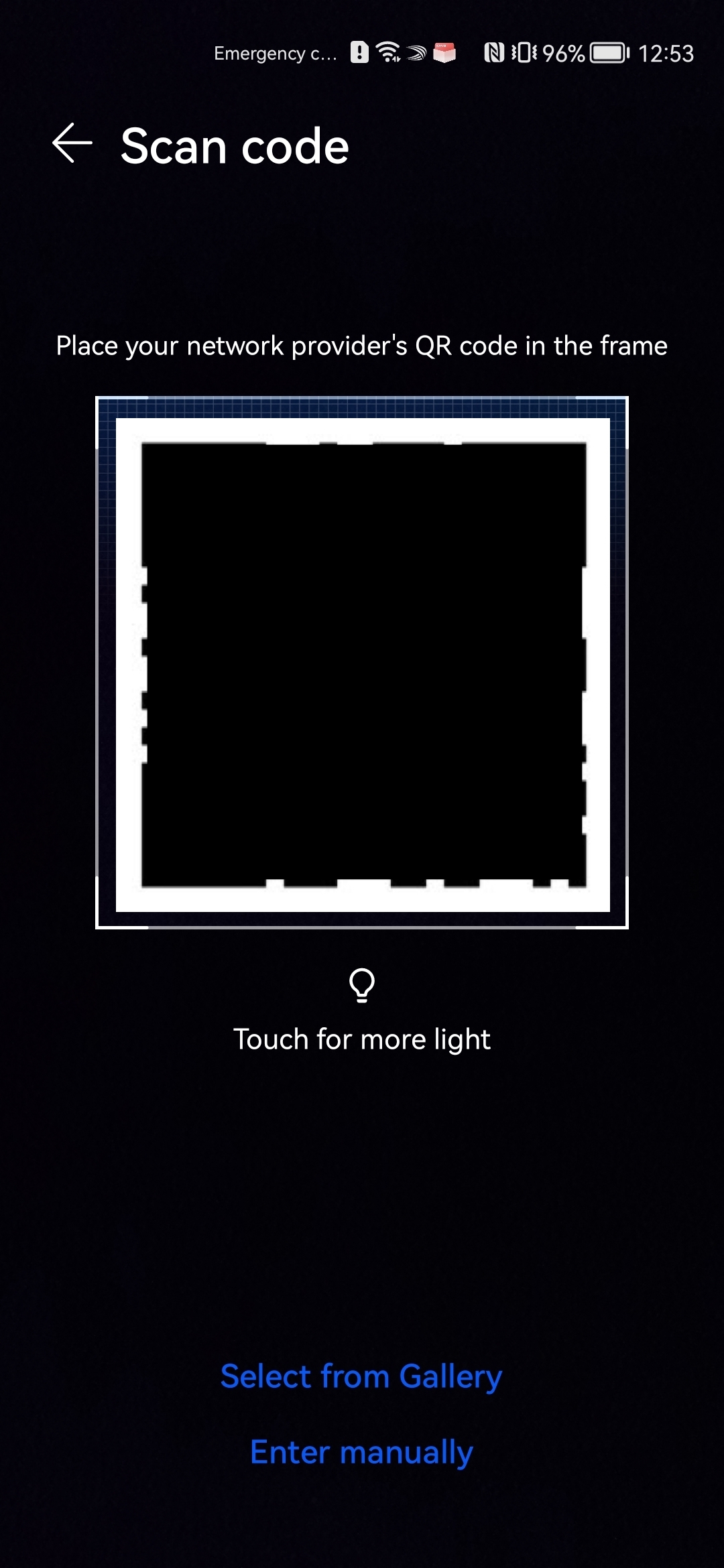
5. Click "Add this eSIM" > Wait for the eSIM to download.
Note: This may take up to 10 minutes, please do NOT close this, or the installation will stop.
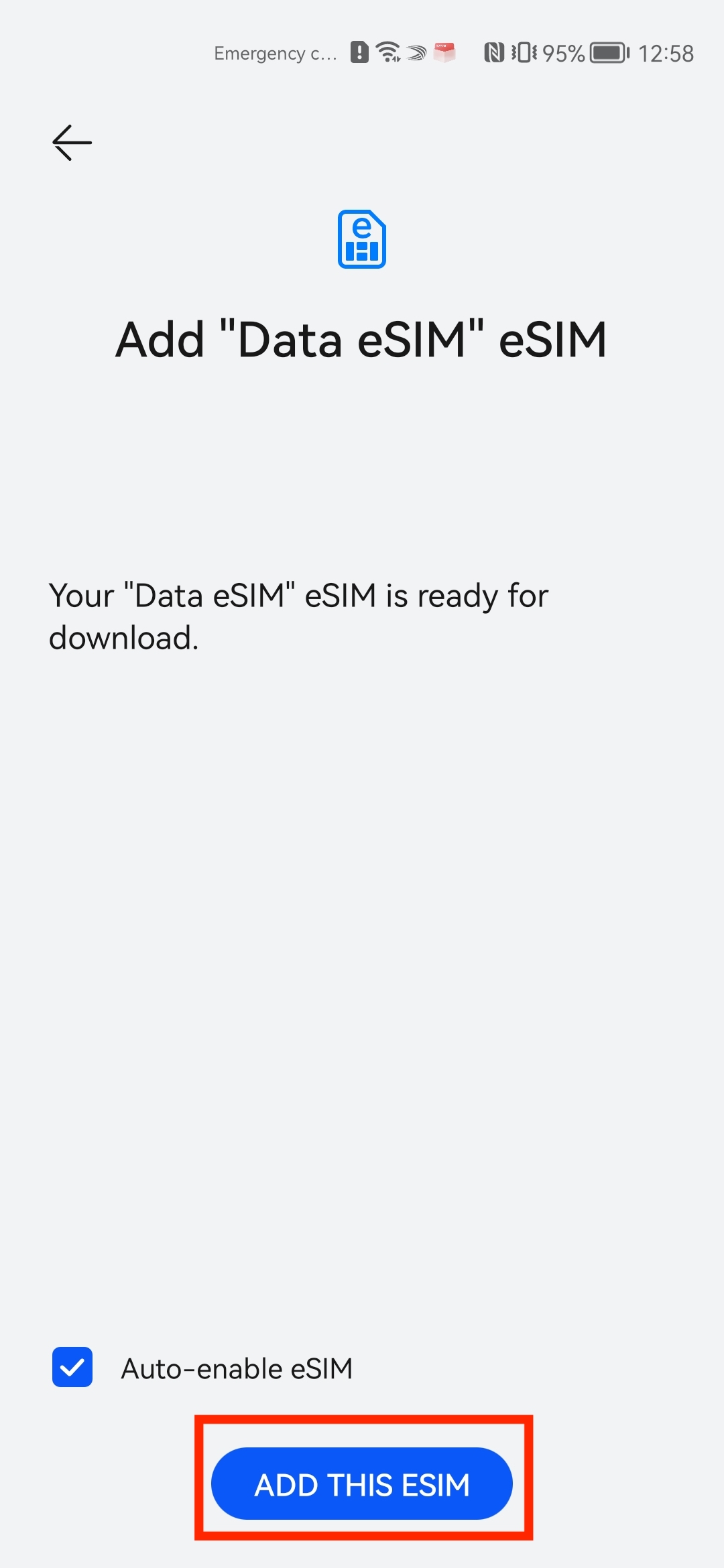
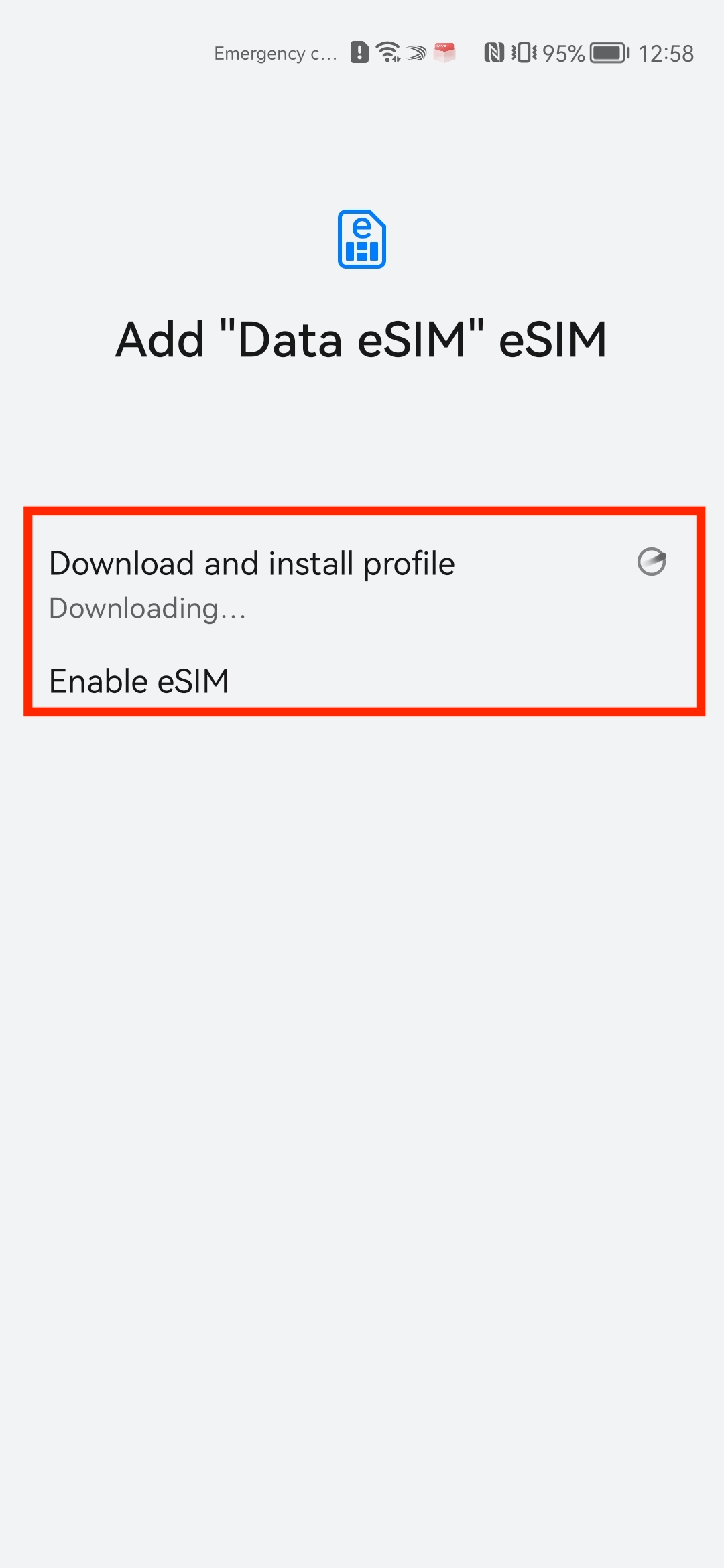
6. Once completed, your eSIM should appear in the list. > Make sure the eSIM is enabled, otherwise the eSIM won't work.
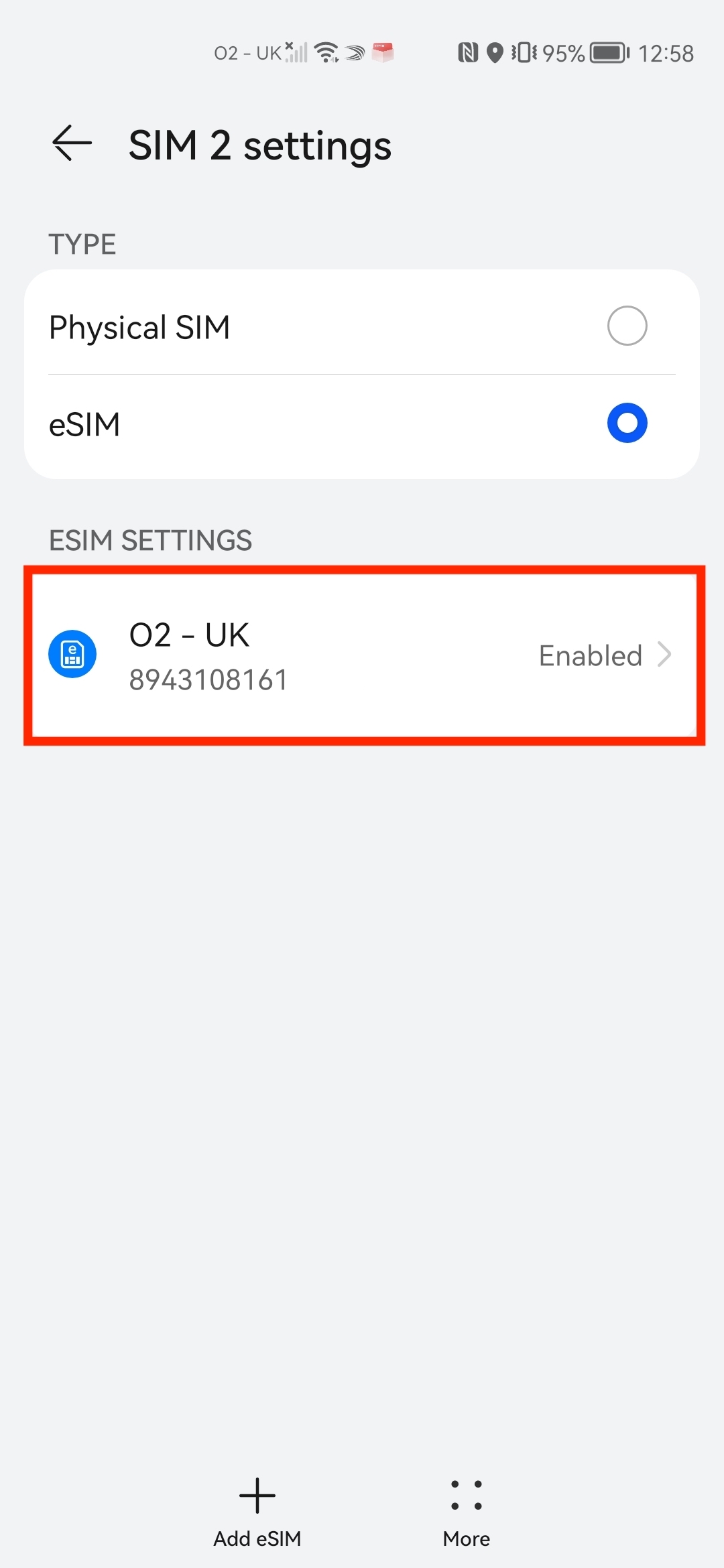
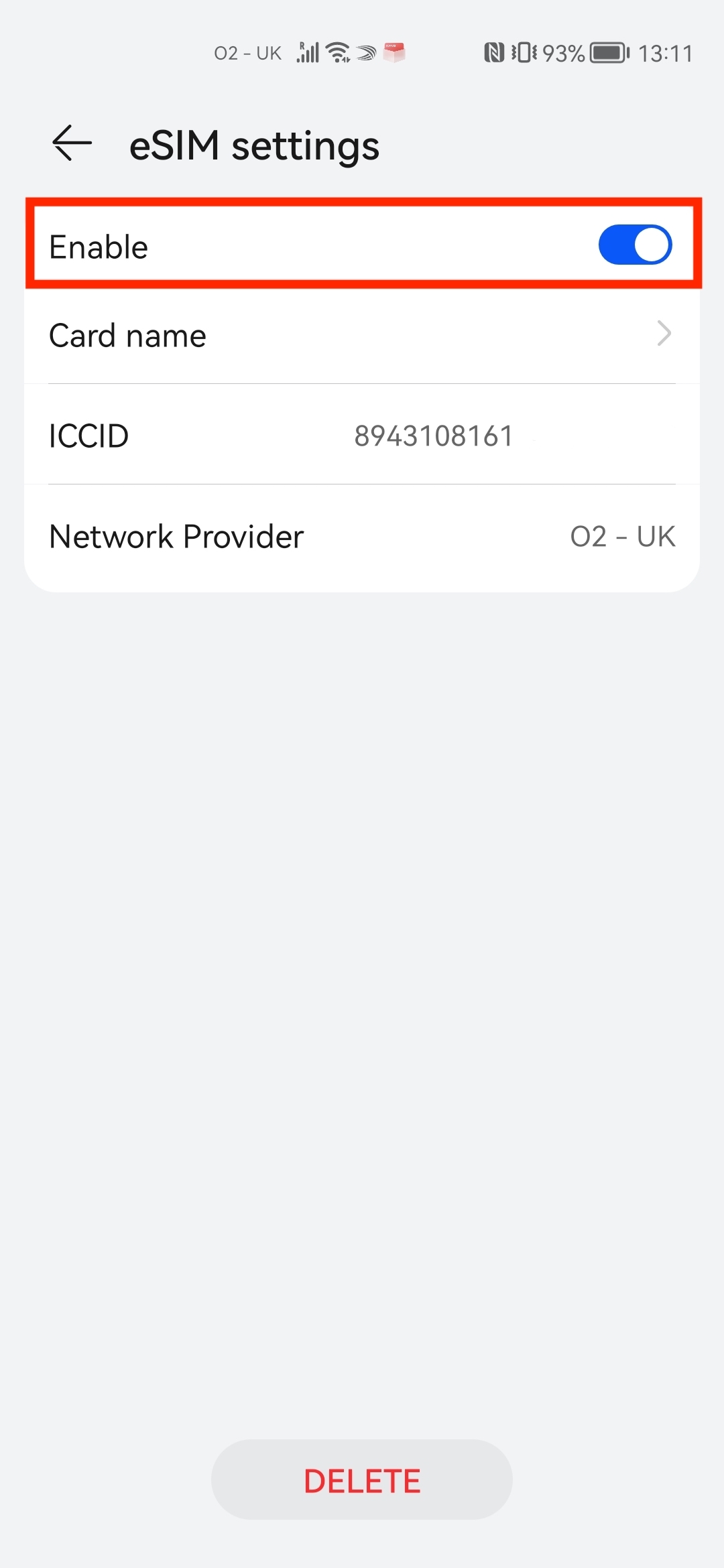
Note: Once you have completed these steps, make sure your Data Roaming is "ON" as seen in the photos below, otherwise you will not be able to use the eSIM.
If you have any questions, please do not hesitate to contact our Coop Travel Support. We are here and happy to help!